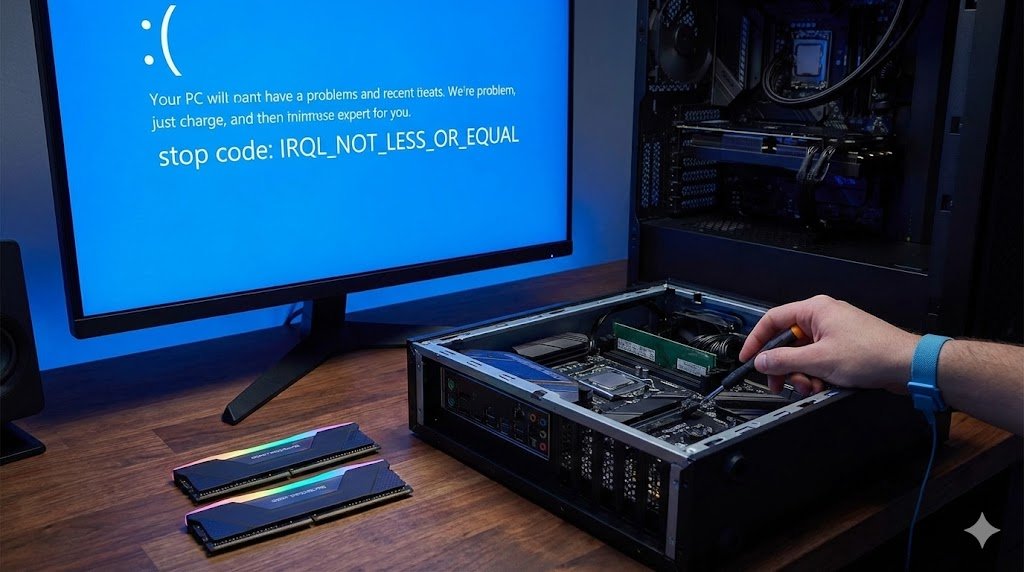
Upgrading your RAM should be the easiest and most satisfying PC upgrade. You snap the new sticks into the motherboard, boot up your PC, and expect blazing-fast multitasking. Instead, you are immediately greeted by a crashing PC and the dreaded Blue Screen of Death (BSOD) reading: IRQL_NOT_LESS_OR_EQUAL.
If you get the IRQL_NOT_LESS_OR_EQUAL error immediately after installing new RAM, the quickest fix is to boot into your motherboard’s BIOS and turn off your XMP or DOCP memory profiles. Often, the motherboard tries to apply your old RAM’s overclocking timings to the new sticks, resulting in severe voltage instability and a memory crash. If the crash persists, you either have a defective RAM stick, or your new memory is not compatible with your motherboard’s QVL (Qualified Vendor List).
Let’s break down the exact steps to stabilize your system, test your new memory, and permanently eliminate this stop code.
Why Does the IRQL Error Happen After a RAM Upgrade?
“IRQL” stands for Interrupt Request Level. Windows uses this system to prioritize hardware processes. The NOT_LESS_OR_EQUAL portion means a device driver or system process tried to access a memory address in your RAM that it did not have permission to use.
When you install new RAM, three things usually trigger this specific violation:
- Unstable Voltage: The new RAM requires slightly more power than the motherboard is automatically supplying.
- Mixed Kits: You kept your old RAM and added the new RAM. Even if they are the exact same brand and speed, different manufacturing batches have microscopic timing differences that cause system-level confusion.
- Memory Controller Limits: You bought insanely fast RAM (e.g., 6000MHz+ DDR5), but your CPU’s internal memory controller cannot handle speeds that high.
Here is how to troubleshoot and fix the hardware conflict.
Method 1: Disable XMP/DOCP and Reset CMOS (The Primary Fix)
If your previous RAM was running on an XMP (Extreme Memory Profile) to boost its speed, your motherboard is likely trying to force those exact same overclocking timings onto your new sticks.
- Restart your PC and repeatedly tap your BIOS key (
DEL,F2, orF12) to enter the BIOS menu. - Look for the Memory Settings, Tweaker, or Overclocking tab.
- Find the setting labeled XMP (Intel) or DOCP/EXPO (AMD).
- Change the setting from “Profile 1” to Disabled or Auto.
- Save and exit.
Boot into Windows and use the PC normally. If the blue screen stops, you know the memory profile was the culprit. You can safely go back into the BIOS later and try to slowly manually adjust the RAM speed up to its advertised limit.
(Extreme Case: If the PC blue screens so fast that you cannot even reach the BIOS, turn off your power supply, unplug the PC, and remove the small circular CMOS battery from your motherboard for 5 minutes. Put it back in. This completely factory-resets your motherboard’s memory memory settings.)
Method 2: Manually Bump the DRAM Voltage
If the system still crashes with XMP disabled, the motherboard might be under-volting the RAM. For example, standard DDR4 runs at 1.20v, but high-performance kits require 1.35v to remain stable.
- Boot back into your BIOS.
- Navigate to the Voltage Control menu.
- Find the DRAM Voltage setting.
- Instead of leaving it on “Auto”, manually type in the voltage listed on the physical sticker of your new RAM sticks (usually 1.35v for DDR4 or 1.25v – 1.40v for DDR5).
- Pro Tip: If it is already at the sticker voltage and still crashing, bump the voltage up by a tiny increment of 0.02v (e.g., from 1.35v to 1.37v) to give the memory controller a little extra stability. Do not exceed 1.40v unless you have extensive overclocking experience.
Method 3: Test for Defective RAM Sticks
Sometimes, a brand-new stick of RAM arrives dead on arrival (DOA) from the factory. A microscopic scratch on the PCB or a bad memory module will trigger the IRQL error the second Windows tries to write data to that specific sector.
You can force Windows to aggressively test the new sticks using a built-in tool:
- Click the Windows Start Menu, type
mdsched.exe, and hit Enter. - Click “Restart now and check for problems”.
- Your PC will reboot into a blue diagnostic screen. Let the test run to 100% (this can take 15 to 30 minutes).
- If the tool reports “Hardware problems were detected,” one of your new sticks is physically broken. You must return the kit for a replacement.
To figure out which stick is broken, remove all RAM, put just one stick in slot A2, and use the PC. If it doesn’t crash, swap it for the other stick.
Method 4: The Internal Component Silo Check
Adding new RAM often reveals pre-existing software instability on your system.
- Game Crashes: If your new RAM is stable on the desktop but immediately blue screens when you launch a Steam game, the memory jump might have corrupted a game file. Check out our guide on how to fix the 0xc0000142 application error in Steam to repair your visual distributables.
- Hardware Bottlenecks: Upgrading your RAM to 32GB won’t fix gaming lag if your CPU is holding back your graphics card. If you recently upgraded your memory to try and squeeze more frames out of your system, read our benchmark on if the RTX 4060 bottlenecks the Ryzen 5 3600 to ensure your core components are balanced.
Frequently Asked Questions (People Also Ask)
1. Does mixing old and new RAM cause IRQL_NOT_LESS_OR_EQUAL? Yes. Mixing different RAM capacities (e.g., an 8GB stick with a 16GB stick), different speeds, or different brands forces the motherboard memory controller to guess the correct timings. This confusion almost always leads to an IRQL BSOD.
2. Can a loose RAM stick cause a blue screen? Absolutely. If the RAM is not seated perfectly parallel in the DIMM slot, the golden connection pins will briefly lose contact with the motherboard, triggering an immediate crash. Make sure you hear a loud “click” from the retention clips on both sides of the stick.
3. What does “memory management” error mean after upgrading RAM? “Memory Management” and “IRQL_NOT_LESS_OR_EQUAL” are sibling errors. Both point directly to failing RAM hardware, corrupted motherboard DIMM slots, or unstable XMP overclocking profiles.
4. Why does my PC work fine until I open a game? When you are on your desktop, Windows only uses the first few gigabytes of your RAM. When you open a heavy game, it pushes data into the higher-capacity sectors of your new sticks. If a higher sector is physically defective, the PC will only crash when a game tries to access it.
5. How do I know if my new RAM is compatible with my motherboard? Go to your exact motherboard manufacturer’s website (e.g., MSI, Asus, Gigabyte), find your motherboard model’s support page, and look for the “Memory Support” or “QVL” (Qualified Vendor List). If the exact model number of your new RAM is not on that list, stability is not guaranteed.
6. Will updating my BIOS fix the IRQL_NOT_LESS_OR_EQUAL error? Often, yes. Motherboard manufacturers release BIOS updates specifically to improve “System Memory Compatibility.” Updating to the latest BIOS version can train the memory controller to properly read newer RAM kits.
7. Can a bad CPU cause RAM blue screens? Yes. The Integrated Memory Controller (IMC) is located inside the CPU, not the motherboard. If you bent a pin on your CPU or if the CPU is dying, it will lose the ability to communicate with the RAM slots, resulting in RAM-related BSODs.
8. Should I install my new RAM in slots 1 and 3, or 2 and 4? For almost all modern dual-channel motherboards, you should install two sticks of RAM in slots A2 and B2 (which are the 2nd and 4th slots counting away from the CPU). Putting them in slots 1 and 3 can cause signal reflection and blue screens.
9. Can outdated drivers cause IRQL_NOT_LESS_OR_EQUAL? Yes, though it is less common immediately after a physical hardware swap. If a graphics driver or network driver tries to write to a bad memory sector created by the new RAM, Windows will blame the driver. Open Command Prompt as admin and run sfc /scannow to fix corrupted drivers.
10. Is 1.4v safe for DDR4 RAM? For high-end DDR4 kits (like Samsung B-Die), 1.4v to 1.45v is perfectly safe for daily use, provided your PC case has adequate airflow. For cheaper kits, sticking closer to the standard 1.35v is recommended to prevent overheating.