How to Factory Reset Soundcore Liberty 4 NC
To fix syncing issues where only one Soundcore Liberty 4 NC earbud works, you must perform a hard factory reset. Place both earbuds into the charging case and leave the lid open. Press and hold the button on the charging case for exactly 10 seconds until the LED indicators inside the case flash white rapidly three times.
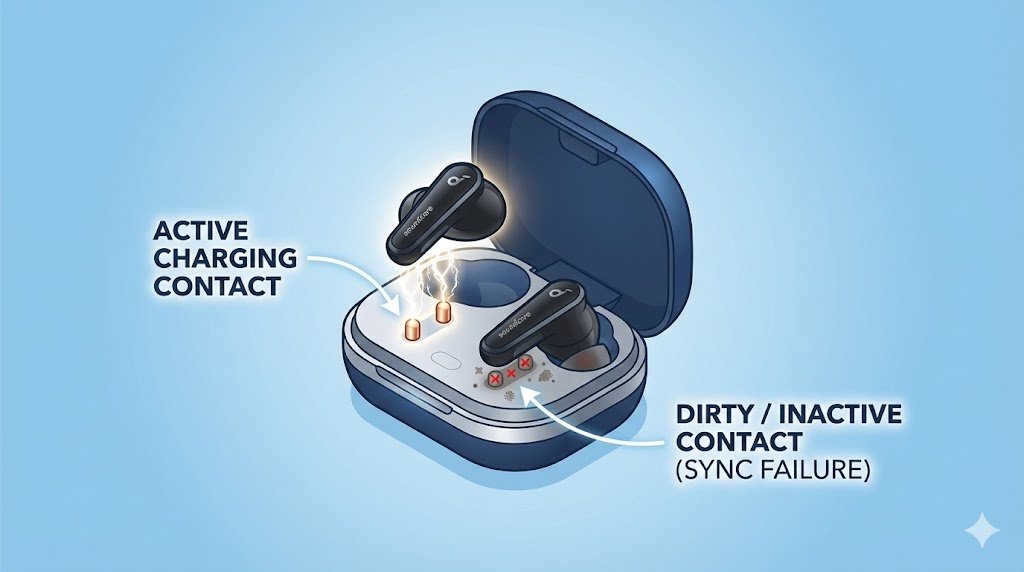
Before assuming your battery is dead, follow our guide to properly clean the metal charging pins using 99% isopropyl alcohol, which removes invisible skin oils that block the electrical connection.
Step-by-Step Reset Guide for Syncing Issues
If your left or right earbud has gone silent, a standard Bluetooth unpair won’t fix it. The earbuds have lost connection to each other. Here is the verified hardware reset process:
- Delete Existing Profiles: Go to the Bluetooth settings on your phone or Windows PC. Find “Soundcore Liberty 4 NC” and select “Forget This Device” or “Unpair.”
- Dock the Earbuds: Place both the left and right earbuds firmly into the charging case. Do not close the lid.
- Verify the Connection: Ensure the white LED indicators inside the case light up briefly when you drop them in. If they don’t, clean the metal charging pins with a dry Q-tip.
- Hold the Reset Button: With the case open, press and hold the physical button on the charging case for 10 seconds.
- Watch the LEDs: Keep holding until you see the LED indicators inside the case flash white rapidly exactly three times.
- Reconnect: Once the flashing stops, the reset is complete. Close the case, open it again, and pair them to your phone as a single new device.
Why Do Soundcore Liberty 4 NC Earbuds Stop Syncing? (The Root Causes)
Understanding why your earbuds desynced in the first place can help you prevent it from happening again. True Wireless Stereo (TWS) earbuds are complex micro-computers, and the “one earbud not working” issue almost always boils down to one of these four hardware or software triggers:
1. The “Master-Secondary” Handshake Failure
Unlike traditional Bluetooth headphones that have one receiver, TWS earbuds have two. Usually, the right earbud connects to your phone (acting as the “Master”), and the left earbud connects to the right earbud (acting as the “Secondary”). If you walk through an area with massive radio frequency interference (like a crowded train station or an office with dozens of Wi-Fi routers), the delicate connection between the two earbuds can drop. When they fail to re-establish this handshake, your phone registers them as two separate devices, or ignores one entirely.
2. Dirty Charging Contacts (The Silent Battery Drain)
This is the most common physical cause. You place both earbuds in the case, assuming they are charging. However, a microscopic layer of sweat, skin oil, or pocket lint on the small metal pogo pins prevents the left earbud from making contact. The right earbud charges to 100%, but the left earbud quietly dies. When you put them in your ears, the left one is completely unresponsive, mimicking a syncing error.
- Prevention: Wipe the metal contacts on the earbuds and inside the case with a microfiber cloth once a week.
3. Accidental “Mono Mode” Confusion
Soundcore Liberty 4 NC earbuds are designed to be used independently (Mono Mode). If you frequently take only one earbud out of the case to take a phone call, your smartphone’s Bluetooth cache can get confused. It begins to prioritize that single earbud’s specific MAC address. When you eventually take the second earbud out, the phone fails to switch back to Stereo Mode.
4. Interrupted Firmware Updates
The Soundcore app regularly pushes Over-The-Air (OTA) firmware updates to improve active noise cancellation (ANC) and sound profiles. If your phone goes to sleep, or if one earbud loses battery during this update, you end up with a version mismatch—the left earbud might be running firmware v3.82 while the right is on v4.10. When firmware versions don’t match, the earbuds refuse to sync with each other as a safety protocol.