You have a list of thousands of customer emails, and you know there are duplicates. In Excel, you would just click the big blue “Remove Duplicates” button on the Data tab and be done in seconds.
You open LibreOffice Calc, go to the Data tab, and… panic. The button is gone.
This is one of the most common frustrations for “Excel Refugees.” The good news is that LibreOffice Calc can remove duplicates, and it’s actually more powerful than Excel’s version. The bad news is that it’s hidden deep inside a menu you’d never think to look in.
If you find yourself cleaning data like this every single day, you might want to automate the process using a simple script checking if your Excel automation will work here.
Here is the step-by-step guide to finding it.
The Solution: The “Advanced Filter” Method
Unlike Excel’s destructive “one-click” tool, LibreOffice uses a filter to identify unique records. This is safer because it gives you more control over the output.
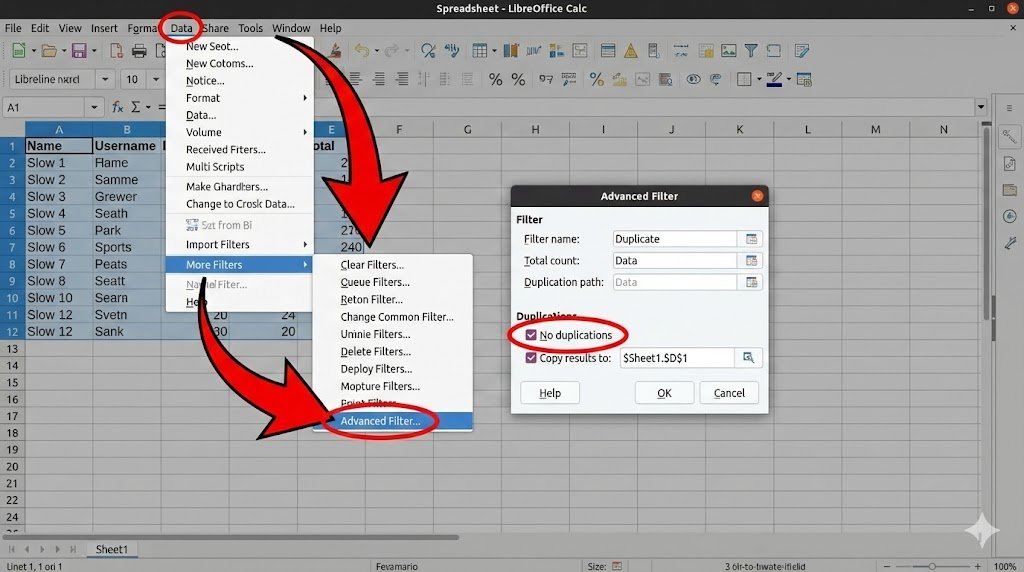
Follow the path highlighted in the image above to access the Advanced Filter dialog.
Here is the process broken down:
- Select your data range, including the header row.
- In the top menu bar, go to Data.
- Hover over the More Filters submenu.
- Click on Advanced Filter….
- A dialog box will appear. You don’t need to set any criteria in the top section.
- Click the Options button (if the bottom section isn’t visible).
- The Crucial Step: Check the box that says No duplications.
- Click OK.
Your list will now be filtered to show only unique records. The duplicate rows are hidden, not deleted. To make it permanent, you can copy the visible cells and paste them to a new location.
Now that you have a clean list of unique IDs, you are ready to pull in data from other sheets using lookup formulas mastering the XLOOKUP alternative.
Pro Tip: Copy to Another Location Automatically
To avoid the copy-paste step and keep your original data intact, use the “Copy results to” option in the Advanced Filter dialog.
As shown in the image, after checking “No duplications,” check the Copy results to box and select a cell on your sheet (e.g., $Sheet1.$D$1). When you click OK, your clean, deduplicated list will appear starting in that cell, leaving your original list untouched. This is the safest and most professional method.
Alternative Methods
- The “Hack” for a Toolbar Button: If you absolutely must have a button, you can add one. Go to Tools > Customize > Toolbars. Search for the command “Advanced Filter” and add it to your Standard toolbar. It’s not a direct “Remove Duplicates” button, but it saves you the menu dives.
- The Formula Method (Non-Destructive): To flag duplicates without hiding them, use the
COUNTIFformula in a new column:=COUNTIF($A$2:A2, A2) > 1This formula will returnTRUEfor the second, third, etc., occurrence of a value, allowing you to filter or highlight them using Conditional Formatting.
Conclusion While it’s not the one-click wonder of Excel, LibreOffice Calc’s Advanced Filter is a robust tool for managing duplicate data. Once you know where to find the “No duplications” checkbox, it becomes second nature.