For many businesses and power users, the biggest barrier to leaving Microsoft Excel isn’t the software itself—it’s the years of custom automation built with VBA (Visual Basic for Applications). The thought of rewriting thousands of lines of code is enough to stop any migration in its tracks.
But what if you didn’t have to rewrite everything?
LibreOffice Calc has a little-known, built-in VBA compatibility layer. It’s not perfect, and it’s not enabled by default, but for many common macro tasks, it can be a lifesaver. Here is your guide to unlocking it.
The “Secret” Compatibility Switch: Option VBASupport 1
LibreOffice uses its own scripting language called LibreOffice Basic. However, its developers have spent years building a bridge to understand Excel’s VBA commands. The key to crossing that bridge is a single line of code placed at the very top of your module:
VB.Net
Option VBASupport 1
This command tells the LibreOffice Basic interpreter to “think” like Excel’s VBA engine. Without it, your Excel macros will almost certainly fail with syntax errors.
How to Enable VBA Support (Step-by-Step)
The process is simple. You don’t need to install any plugins or change global settings. It’s done on a per-module basis within your spreadsheet’s code.
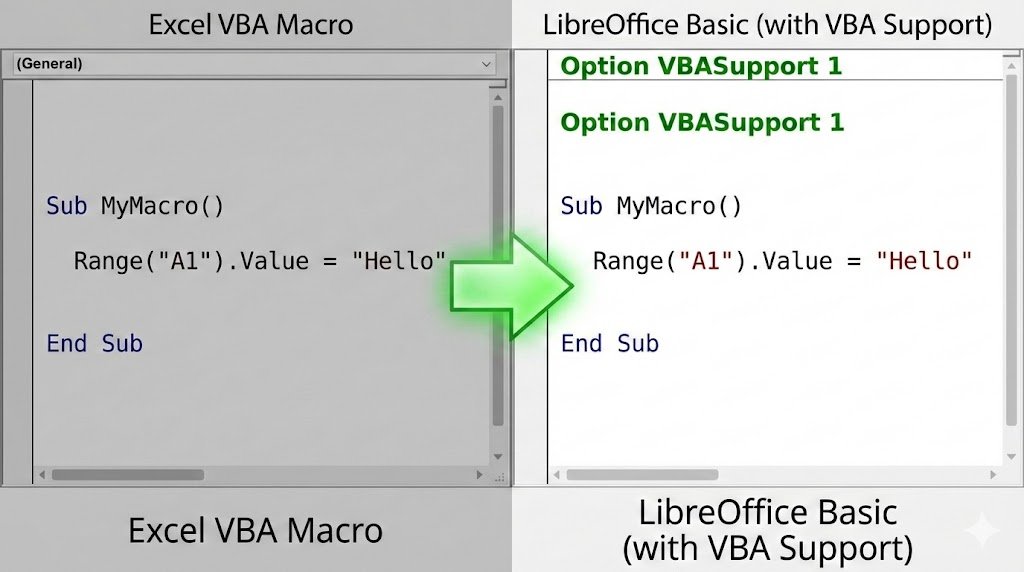
As shown in the image above, you simply add the compatibility line to your code in LibreOffice’s editor.
- Open your spreadsheet in LibreOffice Calc.
- Go to Tools > Macros > Edit Macros….
- Find your macro module in the project explorer on the left.
- In the code editor window, type
Option VBASupport 1as the very first line, before anySuborFunctiondeclarations. - Save and run your macro to test it.
A Reality Check: What Works and What Doesn’t
This is not a magic wand. It is crucial to manage your expectations. The compatibility layer is designed for common tasks, not complex applications.
What Typically Works:
- Core Logic & Math:
If...Thenstatements, loops (For,Do While), variables, and mathematical calculations transfer perfectly. - Basic Range Operations: Commands like
Range("A1").Value = "Test",Cells(1,1).Font.Bold = True, and copy/paste operations generally work well. - Worksheet Functions: Calling standard Excel functions within VBA (e.g.,
Application.WorksheetFunction.VLookup) often succeeds.
What Will Likely Break:
- UserForms & ActiveX Controls: Complex custom forms and interactive buttons built for Excel will not work and must be recreated using LibreOffice’s Dialog tools.
- Deep Windows Integrations: Code that interacts with the Windows file system (e.g.,
Scripting.FileSystemObject), other Office apps (like Outlook), or Windows APIs will fail. - Chart & Pivot Table Automation: The object models for charts and pivot tables are too different between the two programs. This code will almost always need a rewrite.
The Long-Term Strategy: For simple macros, Option VBASupport 1 is a great bridge. However, for critical business automation, the best long-term strategy is to learn LibreOffice’s native scripting languages. LibreOffice Basic is powerful, and it also has first-class support for Python, which is a modern, industry-standard language perfect for complex data tasks